Build an email agent with Langbase & Unified

In this guide, you will build an AI-powered email agent with Langbase SDK, using the Unified.to messaging API as a tool call to fetch emails from Gmail accounts.
Let’s get started!
Step #0
Before you begin, go ahead and create a free personal account on Langbase and Unified.to.
Step #1
Create a new directory for your project and navigate to it.
mkdir email-agent && cd email-agent
Step #2
Initialize Node.js project and create an email-agent.ts file.
npm init -y && touch email-agent.ts
Step #3
You will use the Langbase SDK to connect to the AI agent pipes, dotenv to manage environment variables and Unified SDK to fetch emails. Install them with:
npm i langbase dotenv @unified-api/typescript-sdk
Step #4
Every request you send to Langbase needs an API key. To generate your Langbase API key follow these steps.
Create an .env file in the root of your project and add your Langbase API key.
# Replace xxxxxxxxx with your Langbase API key.
LANGBASE_API_KEY=xxxxxxxxx
You also need the Unified API key to work with its messaging API. Follow this quickstart guide to learn more about how you can generate one. Once you have the key, add it to the '.env' file.
LANGBASE_API_KEY=xxxxxxxxx
UNIFIED_API_KEY=xxxxxxxxx
Step #5
If you have set up LLM API keys in your profile, the pipe agent will automatically use them. If not, navigate to the LLM API keys page and add keys for different providers like OpenAI, TogetherAI, Anthropic, etc.
Step #6
On Langbase, fork this public email agent pipe. This agent pipe analyzes user prompts to fetch emails, process them, and respond accordingly. If the user asks any question other than emails, it responds back with a predefined message.
The pipe agent contains the following tool definition. The agent calls the tool when the user provides a prompt like fetch the latest email from my inbox. The tool uses Unified API to fetch the latest email from the user's Gmail account.
{
	"type": "function",
	"function": {
		"name": "fetchEmails",
		"description": "Fetch number of emails from user inbox.",
		"parameters": {
			"type": "object",
			"required": ["num"],
			"properties": {
				"num": {
					"type": "string",
					"description": "The number of emails to fetch from the user inbox. Default value is 1."
				}
			}
		}
	}
}
Step #7
To access Google services such as Gmail with the Unified API, you will need to generate and retrieve your OAuth 2 credentials in the Google Cloud Console.
You can follow this guide to quickly set it up.
Step #8
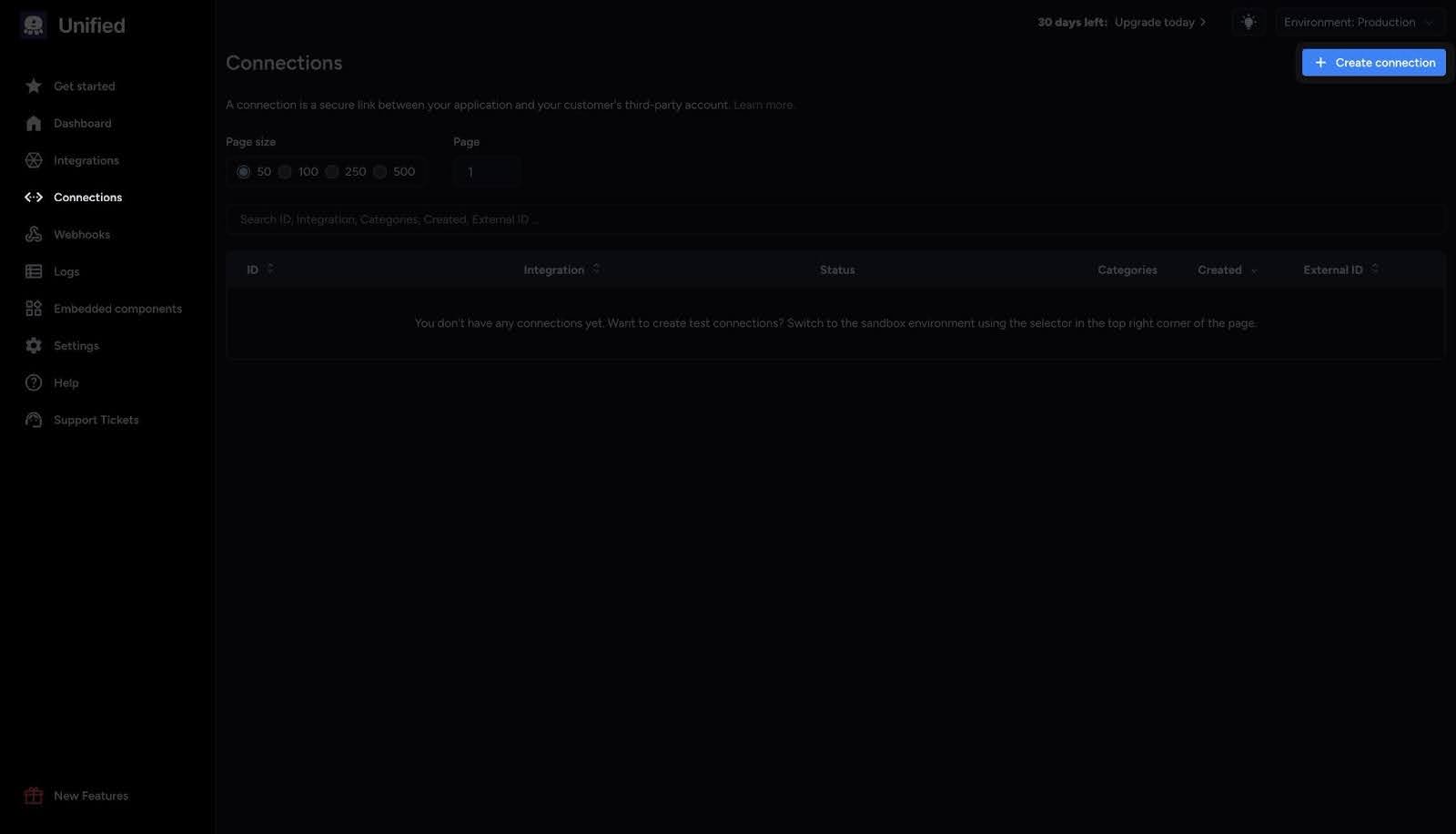
Lastly, navigate to the “Connections” inside the Unified dashboard and create a new Gmail connection.
Step #9
In this step, you will call the forked email agent pipe to analyze user prompts. To fetch emails from a user's inbox using Langbase, we'll break this process into two steps. Go ahead and add the following code to your email-agent.ts file:
import 'dotenv/config';
import { Langbase, Tools } from 'langbase';

// Initialize Langbase SDK
const langbase = new Langbase({
	apiKey: process.env.LANGBASE_API_KEY!
});

// Tool definition to fetch emails from user inbox
const fetchEmailToolDefinition: Tools = {
	type: 'function',
	function: {
		name: 'fetchEmails',
		description: 'Fetch number of emails from user inbox.',
		parameters: {
			type: 'object',
			required: ['num'],
			properties: {
				num: {
					type: 'string',
					description:
						'The number of emails to fetch from the user inbox. Default value is 1.'
				}
			}
		}
	}
};
Here's whats happening in the above code:
- Initialize the Langbase SDK with an API key from the environment variables.
- Define the
fetchEmailToolDefinitionobject that contains the tool definition to fetch emails from the user's inbox.
Now, let's implement the email agent and handle the response stream. For that add the following code in the same email-agent.ts file:
import { Langbase, Tools, getRunner, getToolsFromRunStream } from 'langbase';

async function userEmailAgent(prompt: string) {
	// Call the email agent pipe
	const { stream } = await langbase.pipes.run({
		stream: true,
		name: 'email-agent',
		messages: [
			{
				role: 'system',
				content: `You are an AI email agent that fetches emails from user inbox.
					If user asks anything other than fetching emails,
					you should respond that you can only process prompts related to emails.`
			},
			{
				role: 'user',
				content: prompt
			}
		],
		tools: [fetchEmailToolDefinition]
	});

	// Split the stream into two parts to check for tool calls and print on screen
	const [streamForTools, streamForResponse] = stream.tee();
	const toolCalls = await getToolsFromRunStream(streamForTools);

	// Check if any tool calls are present
	const hasToolCalls = toolCalls.length > 0;

	// If tool calls are present, handle them
	if (hasToolCalls) {
		// Handle tool calls (to be implemented)
	} else {
		// If no tool calls are present, get the runner and listen for content
		const runner = getRunner(streamForResponse);
		runner.on('content', content => {
			process.stdout.write(content);
		});
	}
}

// Execute the email agent with a test prompt
(async () => {
	const userPrompt = 'Fetch latest email from my inbox.';
	await userEmailAgent(userPrompt);
})();
Let's take a look at what is happening in this code:
- Define
userEmailAgent, which sends a request to the Langbase agent with a system prompt and user input. - Split the response stream into two:
- One checks if tool calls exist.
- The other prints the response on the screen if no tools are needed.
- If a tool call is detected, it will be handled in the next step. Otherwise, you will print the stream on the console.
- Define an immediately invoked function expression (IIFE) where you have called
userEmailAgentfunction. This will call the function when you run the file.
Step #10
Now you will handle the case when agent pipes make a tool call. Go ahead and add the following code in email-agent.ts file:
import { Langbase, Tools, getRunner, getToolsFromRunStream } from 'langbase';
import { UnifiedTo } from '@unified-api/typescript-sdk';
import 'dotenv/config';

// Initialize Langbase SDK
const langbase = new Langbase({
	apiKey: process.env.LANGBASE_API_KEY!
});

// Initialize Unified API SDK
const unified = new UnifiedTo({
	security: {
		jwt: process.env.UNIFIED_API_KEY!
	}
});

// Function to fetch emails from user inbox
async function fetchEmails(args: { num: string }) {
	const num = args.num || '1';

	// use unified messaging API to fetch x number of emails
	const emails = await unified.messaging.listMessagingMessages({
		connectionId: 'REPLACE_WITH_CONNECTION_ID',
		channelId: 'inbox',
		limit: parseInt(num)
	});

	for (const email of emails) {
		const emailContent = email.message;
		console.log('Email:', emailContent);
	}
}

// All tools available in the agent
const allTools: Record<string, Function> = {
	fetchEmails
};

// Tool definition to fetch emails from user inbox
const fetchEmailToolDefinition: Tools = {
	type: 'function',
	function: {
		name: 'fetchEmails',
		description: 'Fetch number of emails from user inbox.',
		parameters: {
			type: 'object',
			required: ['num'],
			properties: {
				num: {
					type: 'string',
					description:
						'The number of emails to fetch from the user inbox. Default value is 1.'
				}
			}
		}
	}
};

async function userEmailAgent(prompt: string) {
	// Call the email agent pipe
	const { stream } = await langbase.pipes.run({
		stream: true,
		name: 'email-agent',
		messages: [
			{
				role: 'system',
				content: `You are an AI email agent that fetches emails from user inbox.
					If user asks anything other than fetching emails,
					you should respond that you can only process prompts related to emails.`
			},
			{
				role: 'user',
				content: prompt
			}
		],
		tools: [fetchEmailToolDefinition]
	});

	// Split the stream into two parts to check for tool calls and print on screen
	const [streamForTools, streamForResponse] = stream.tee();
	const toolCalls = await getToolsFromRunStream(streamForTools);

	// Check if any tool calls are present
	const hasToolCalls = toolCalls.length > 0;

	// If tool calls are present, handle them
	if (hasToolCalls) {
		toolCalls.map(async tool => {
			const fnName = tool.function.name;
			const fnArgs = JSON.parse(tool.function.arguments);

			if (allTools[fnName]) {
				await allTools[fnName](fnArgs);
			} else {
				console.error(`Function "${fnName}" not found.`);
			}
		});
	} else {
		// If no tool calls are present, get the runner and listen for content
		const runner = getRunner(streamForResponse);
		runner.on('content', content => {
			process.stdout.write(content);
		});
	}
}

(async () => {
	const userPrompt = 'Fetch latest email from my inbox.';
	await userEmailAgent(userPrompt);
})();
Let's take a look at the above code:
- Initialize the Unified API SDK with the API key from the environment variables.
- Define a
fetchEmailsfunction that takes anumas an argument. Thenumdefines how many emails the function needs to fetch and uses Unified SDK to fetch emails. fetchEmailsfunction then logs the email content on the console- Create an object that contains the
fetchEmailsfunction tool. - Inside
userEmailAgentfunction, map over the tools array to call every tool the agent called.
You can find the connection id inside connections in the Unified dashboard.
Step #11
Run the email agent by running the following command in terminal:
npx tsx email-agent.ts
You should see the response in your terminal. Here’s an example output you’ll see in the console:
Hi folks,

I just wanted to share how impressed I am with the service I received yesterday!
The product worked perfectly, and customer support was incredibly helpful and efficient.

Great job to the team!
John.
This is how you can build an AI email agent using Langbase pipe agents and Unified messaging API.
We have also written a guide to help you build a fully functional AI email response generator workflow. This composable multi-agent AI workflow takes user email, analyzes its sentiment, summarizes it, decides whether to respond, and generates the response email if needed.
You can pass the emails you get from the above pipe agent we created through this composable multi-agent AI email agent workflow and generate response emails as well.