How to build multi-agent human-in-the-loop AI support with Langbase?
Multi-agent infrastructure is an effective approach for building AI apps. Just as it's best practice to organize components into separate files rather than crowding everything into one, the same applies when leveraging LLMs for various tasks. Expecting a single LLM request to handle multiple tasks simultaneously can lead to hallucinations and errors. Here multi-agent AI infra can be quite useful.
By using a multi-agent AI setup, each agent can focus on a specific task, enhancing performance and reliability.
In this guide, we will
- build a multi-agent AI support that will
- leverage AI pipes, tools, and memory to
- answer support query from docs
- connect to a live agent
We will be working with the stream responses in this guide. So make sure you keep the stream on while following through this guide.
Step #0
We will be using Langbase for the complete AI infrastructure. So please go ahead and sign up if you haven’t already.
Step #1
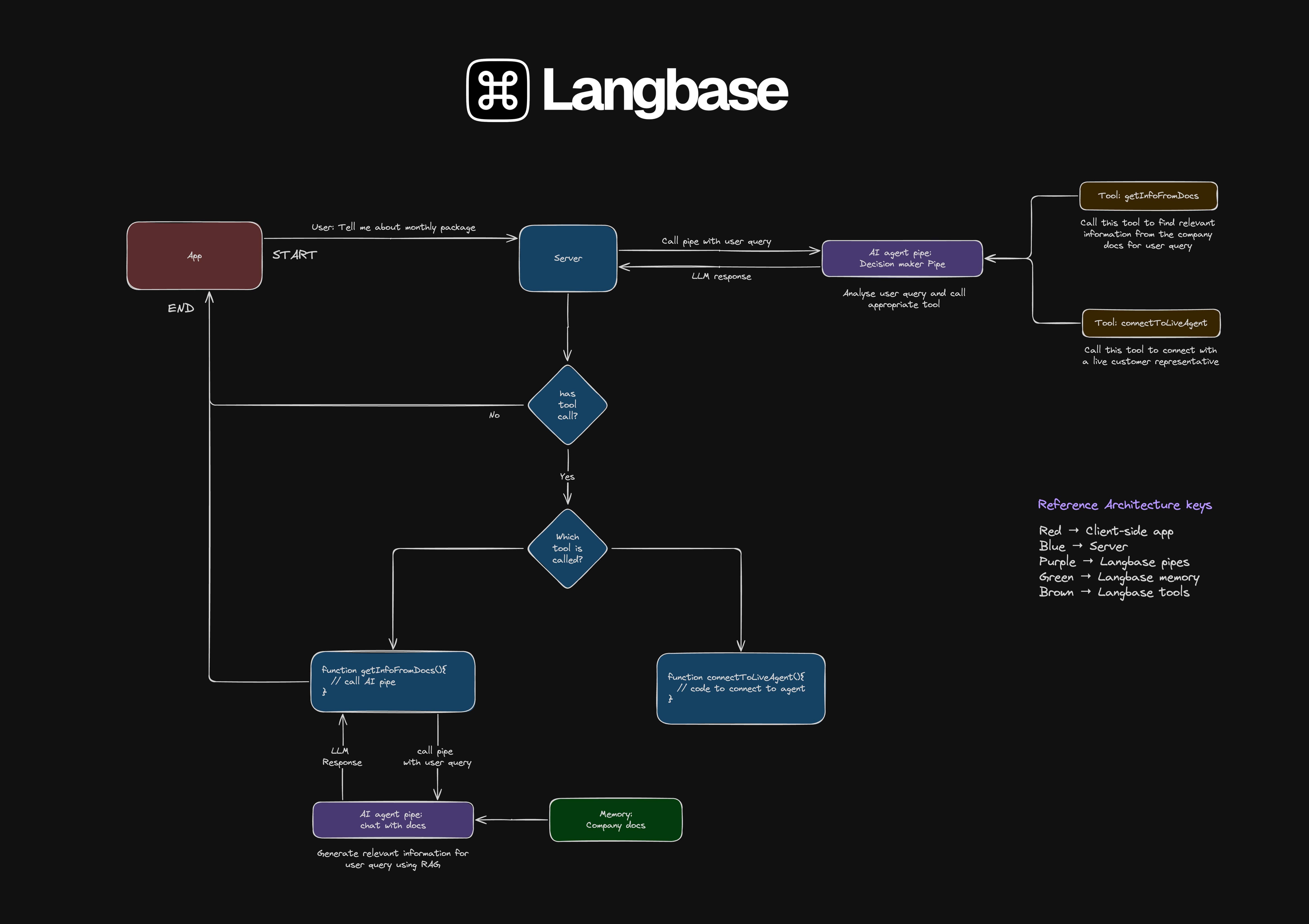
We will use two agentic pipes in our AI support agent. One is a decision maker and the other is to generate an AI response from company documentation using RAG.
The decision maker AI pipe will analyze the user query. If it is around the company, it will call the getInfoFromDocs tool to get relevant information. However, If the user wants to talk to customer support, the AI agent pipe will call the connectToLiveAgent tool instead.
In case neither conditions are met, it will respond with that it cannot answer questions other than the ones around the company.
You can create a pipe by navigating to pipe.new. Go ahead and give your pipe a name, description, and select create. By default, the pipe will be public.
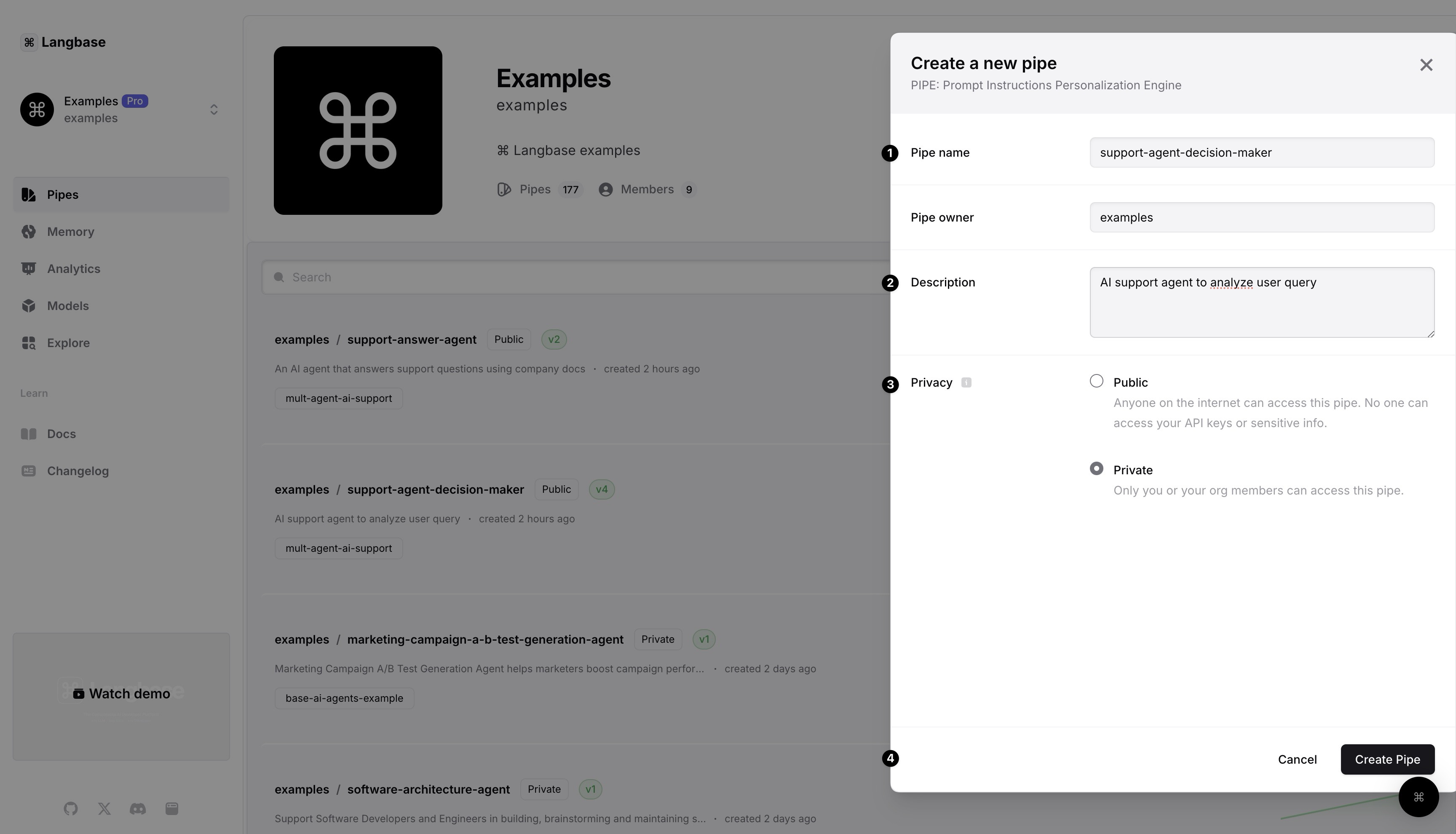
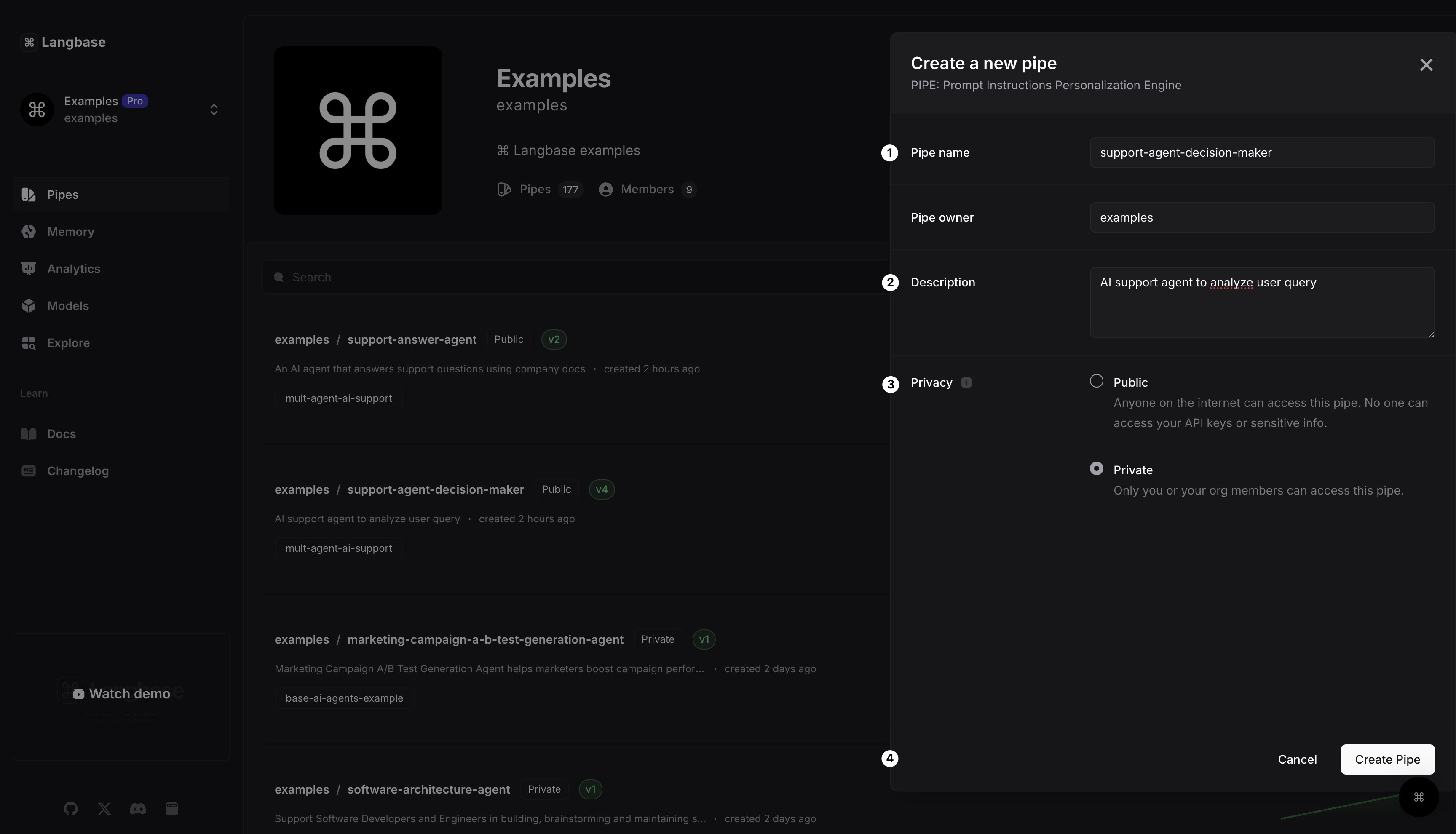
I have already created the pipes we will use in this AI support agent. These pipes are public so you can just fork them and get started.
Step #2
In the previous step, I mentioned something about tool calling. LLM tool calling allows a language model (like GPT) to use external tools (functions inside your codebase) to perform tasks it can't handle alone.
Instead of just generating text, the model can respond with a tool call (name of the function to call with parameters) to trigger a function in your code.
In our case, we will use tool calling to fetch relevant information via AI from the company docs and to connect with a live support agent.
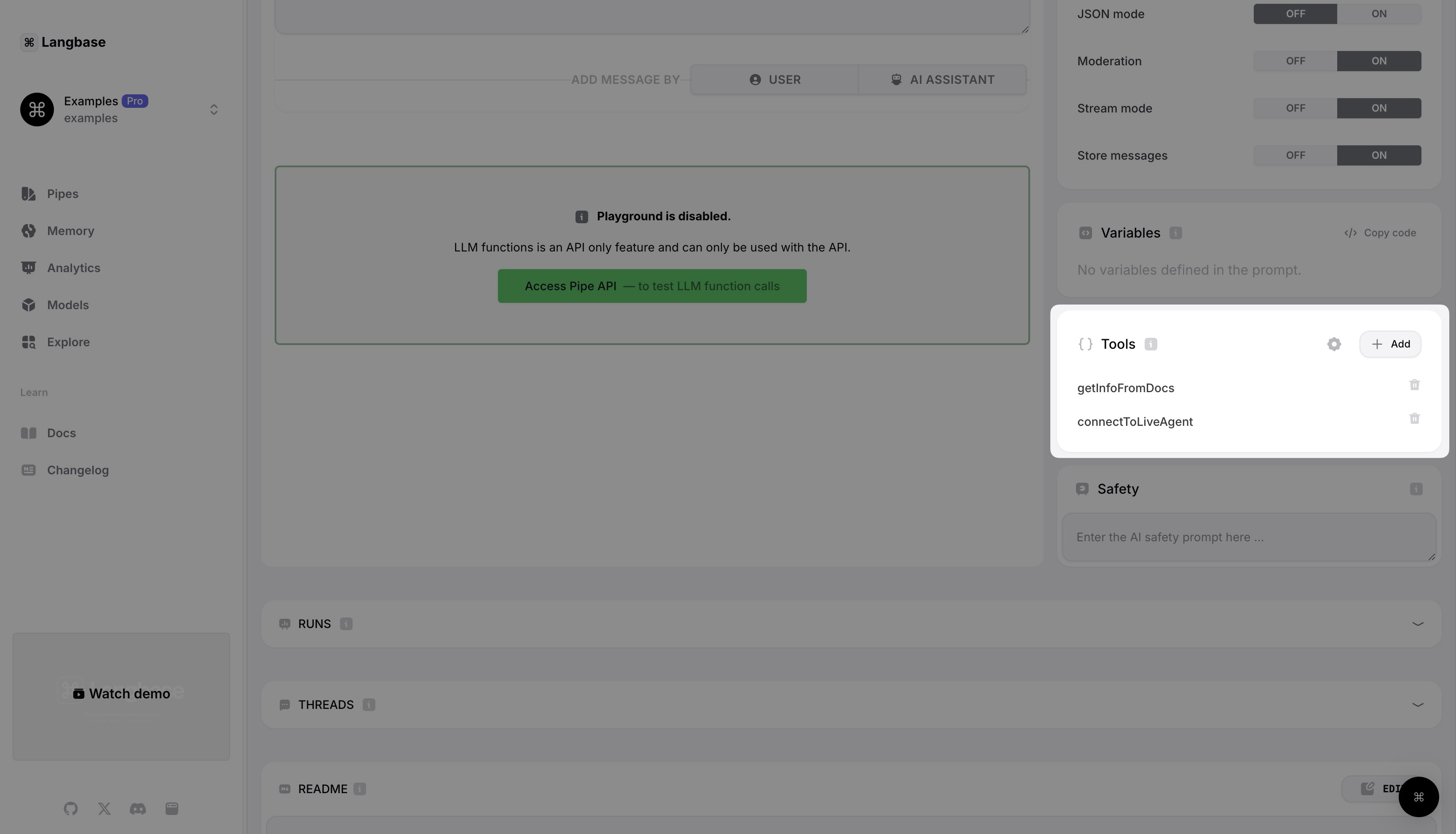
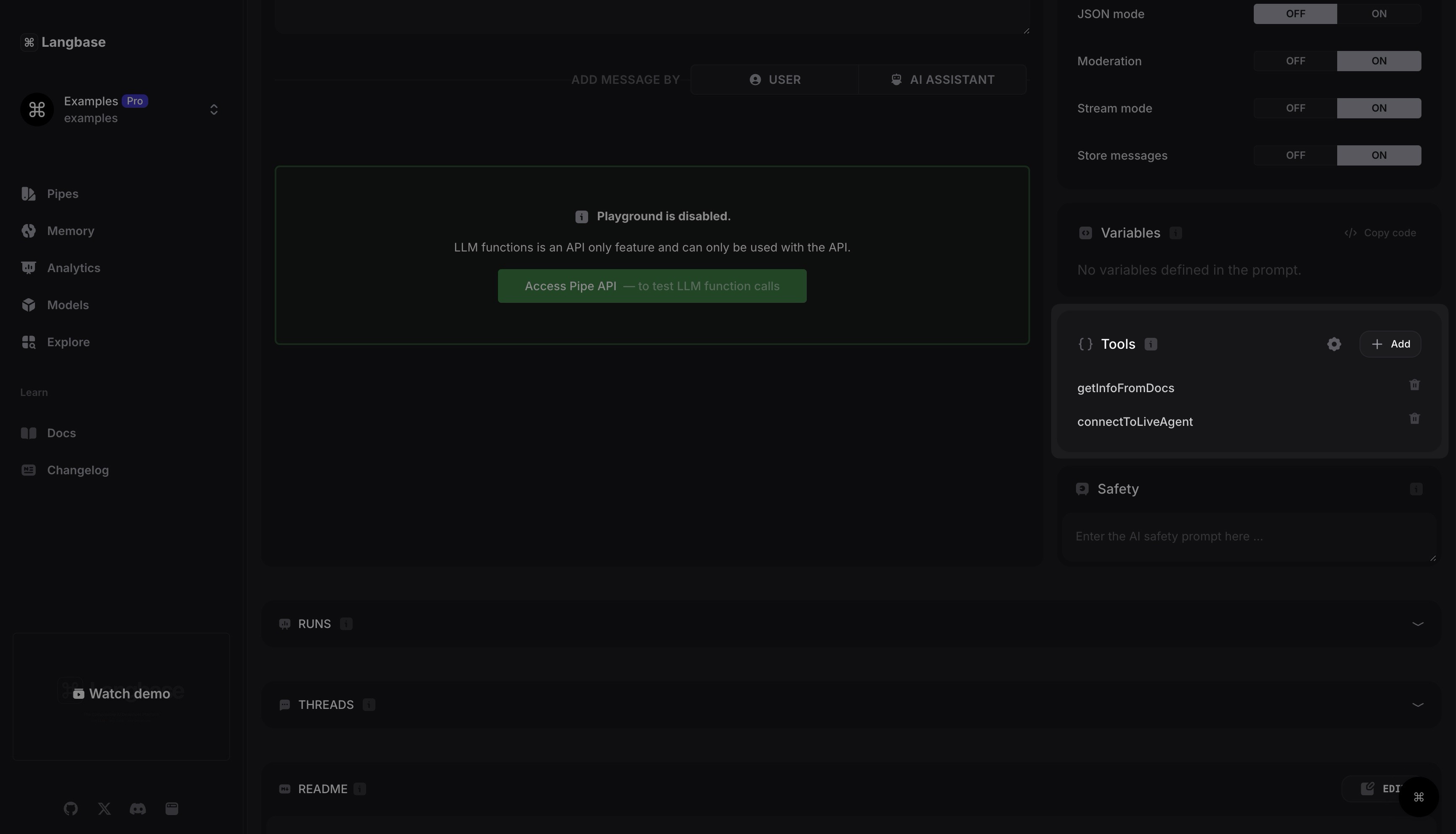
We need to add tool definition schema in our decision maker pipe for both tools. There is a tools section in the pipe playground to add tools in a pipe. Let’s add getInfoFromDocs and connectToLiveAgent tools to our decision maker pipe or just fork the pipes that I have already created for this guide.
Step #3
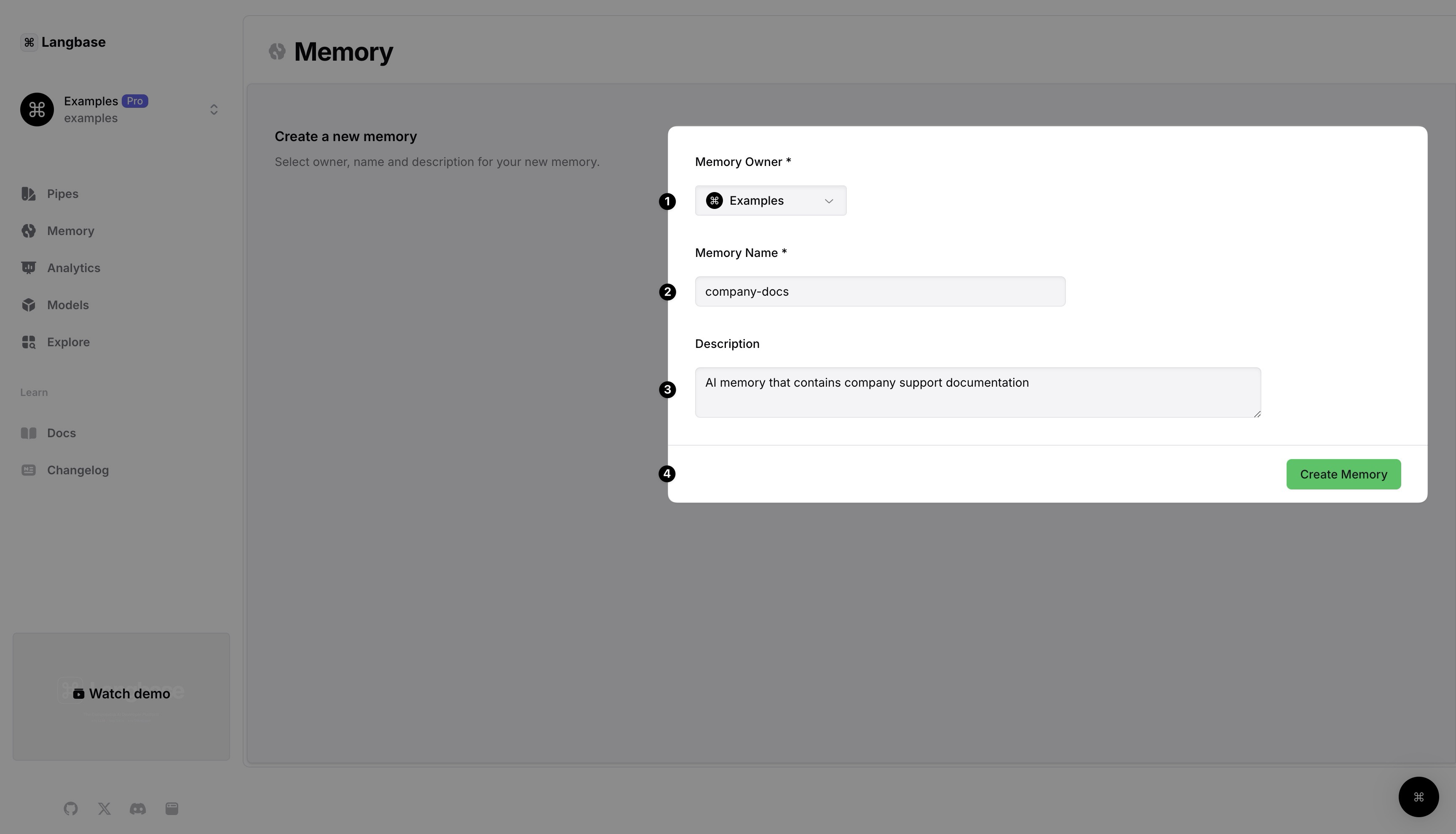
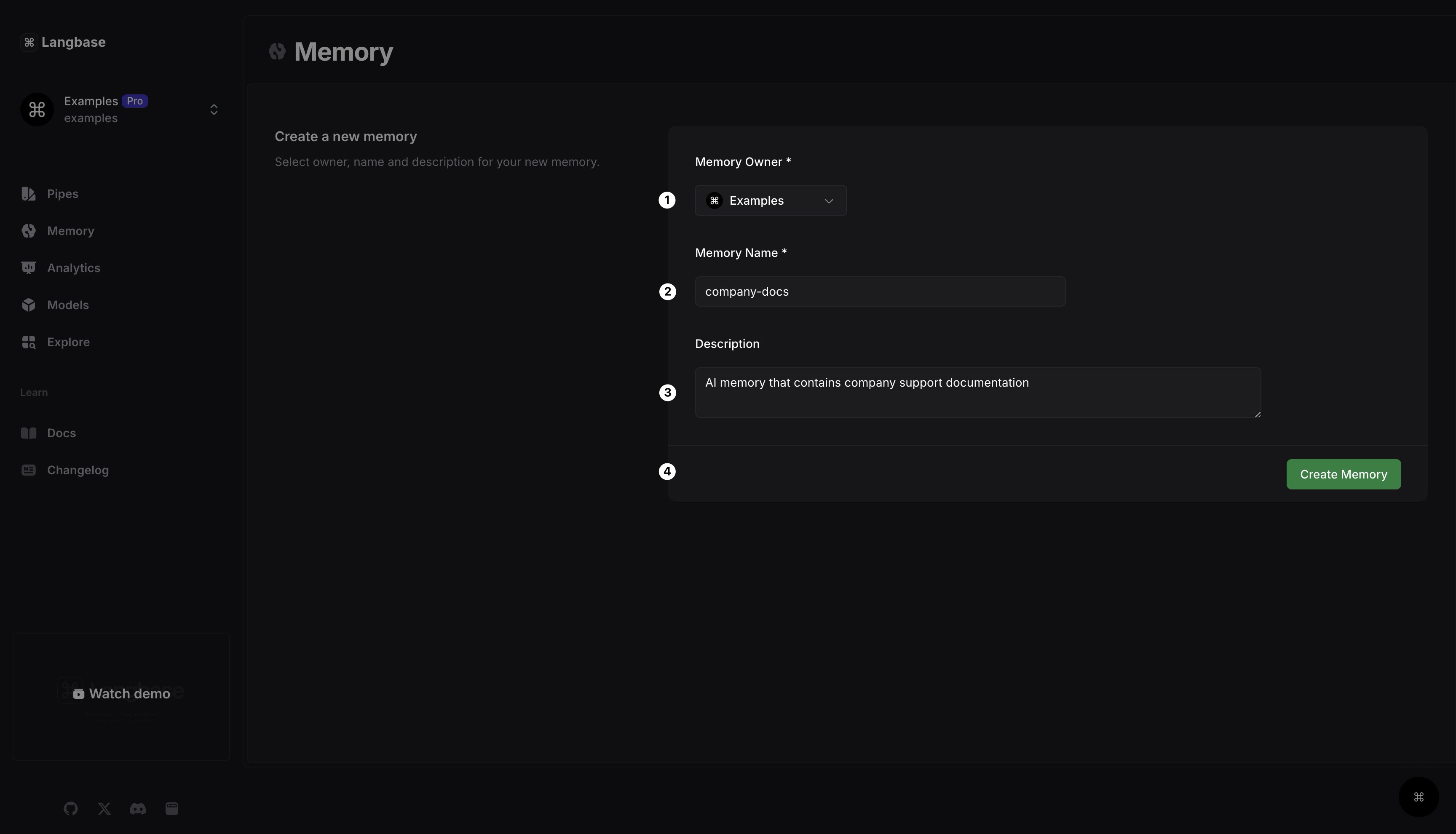
Let’s create an AI memory that will contain all the company documentation. Navigate to rag.new. Give the memory a name, description and select Create memory.
After memory is created, please upload all your company docs into it.
Step #4
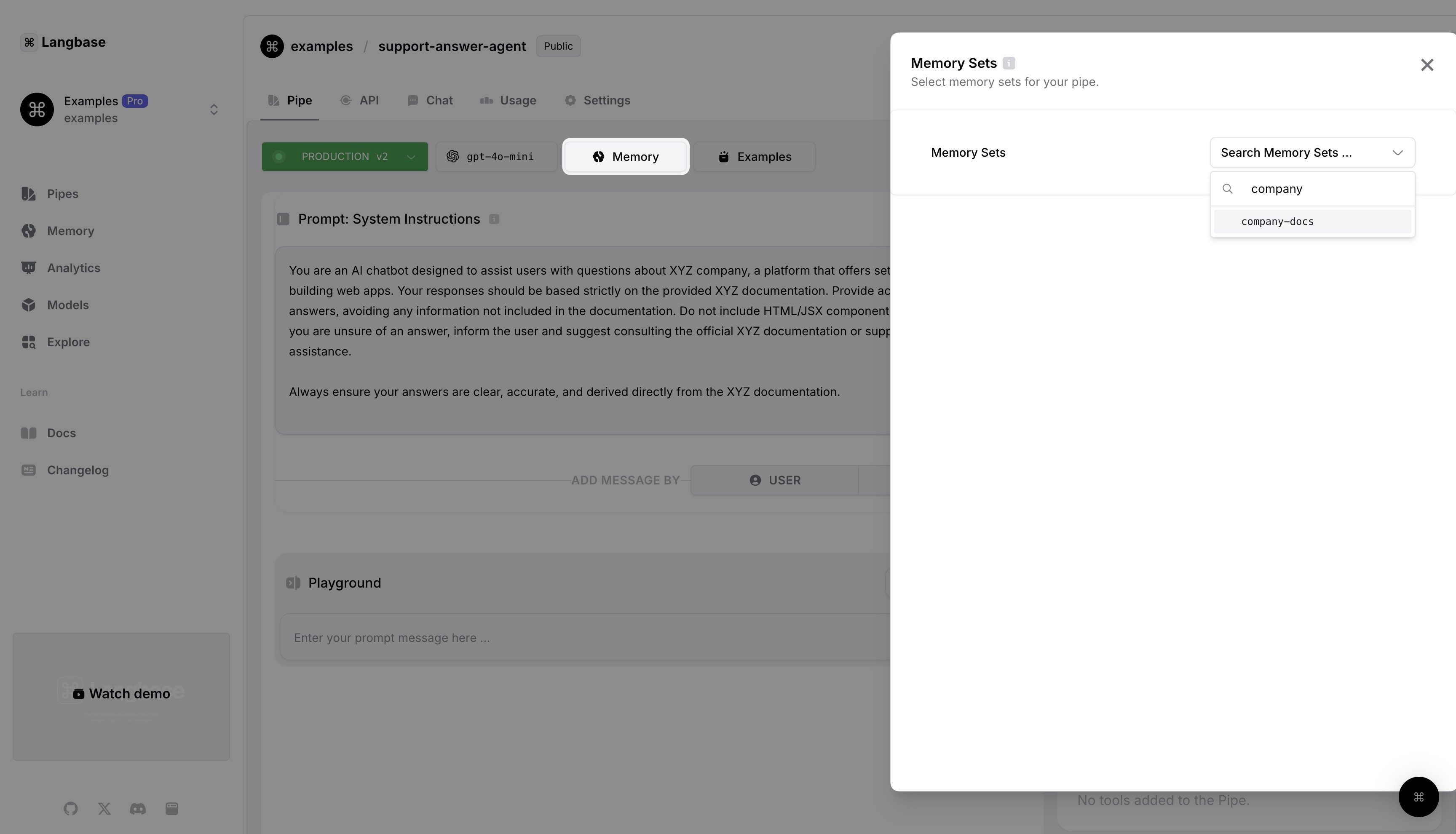
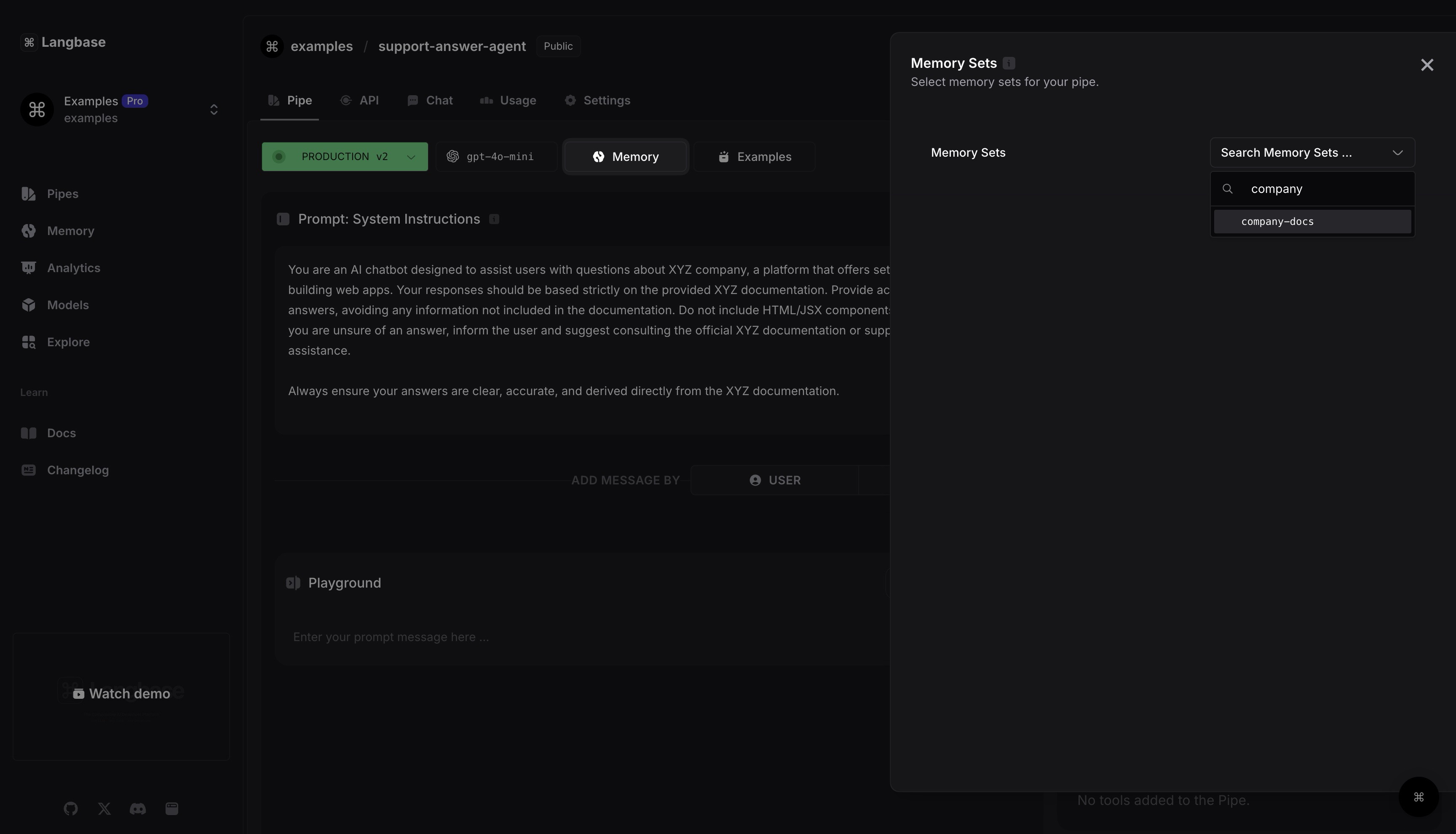
Open support answer agent pipe that will generate answers from company docs based on user query. Click on the Memory button and then select the memory we created in the last step.
Step #5
Let's get to the fun part of writing code. Create a directory in your local machine and open it in a code editor. Run the following command in the terminal:
npm init -y
npm install dotenv @baseai/core
This command will create a package.json file in your project directory with default values. It will also install the dotenv package to read environment variables from the .env file. We will also be using the @baseai/core package for handling the stream, getting tools from the stream, and more.
Step #6
Let’s write the code for our AI support agent.
Step 6.1: Create a .env file
Go ahead and first create a .env file in your project. Add the following API keys to this file:
# https://langbase.com/examples/support-agent-decision-maker
LANGBASE_SUPPORT_AGENT_DECISION_MAKER_PIPE=""

# https://langbase.com/examples/support-answer-agent
LANGBASE_SUPPORT_ANSWER_AGENT_PIPE=""
You can find pipe secret API keys either by clicking on the Code button on the upper right corner or by navigating to the API page.
Step 6.2: callLangbasePipe()
Let’s now create an index.ts file in the root of our project. We will write a callLangbasePipe() function inside it where we will call our agentic AI pipes.
import 'dotenv/config';

const ENDPOINT = `https://api.langbase.com/beta/pipes/run`;

async function callLangbasePipe({ apiKey, prompt }) {
	return await fetch(ENDPOINT, {
		method: 'POST',
		headers: {
			'Content-Type': 'application/json',
			Authorization: `Bearer ${apiKey}`,
		},
		body: JSON.stringify({
			messages: [{ role: 'user', content: prompt }],
		}),
	});
}
Step 6.3: getInfoFromDocs()
In step 2, we added a getInfoFromDocs tool to our decision maker pipe. Since tools are essentially functions in your code, let’s create a getInfoFromDocs() function that will call another pipe to generate a user query response from the company documentation.
const userPrompt = `What is the monthly pricing of XYZ company?`;

async function getInfoFromDocs() {
	return await callLangbasePipe({
		prompt: userPrompt,
		apiKey: process.env.LANGBASE_SUPPORT_ANSWER_AGENT_PIPE,
	});
}
Step 6.4: connectToLiveAgent()
Another tool that we added in step 2 was for connecting to a live agent. LLM will result with a connectToLiveAgent tool call in case the user wants to talk directly to a customer support agent. So let’s create a function to handle this tool call.
// const userPrompt = `I want to connect to a live agent`;

async function connectToLiveAgent() {
	// connect to live agent
	return `Hello! How can I help you today?`;
}
Step 6.5: logStream
Let’s create one last function that will log the stream we will receive from our AI pipe into the terminal.
import { getRunner } from '@baseai/core';

async function logStream(stream: ReadableStream<Uint8Array>) {
	const runner = getRunner(stream);

	runner.on('connect', () => {
		console.log('======= Stream started. ======= \n');
	});

	runner.on('content', content => {
		process.stdout.write(content);
	});

	runner.on('end', () => {
		console.log('\n\n ======= Stream ended.======= ');
	});

	runner.on('error', error => {
		console.error('Error:', error);
	});
}
I have used getRunner() function from @baseai/core to iterate over the stream to log it on the console.
Step 6.6: main()
Now let’s connect all these pieces together in a single main() function. We will first call our decision maker pipe that will decide whether to:
- Get information from company docs against user query
- Connect with a live agent
- Send a generic response to user
Here is how we will do it.
import { handleResponseStream } from '@baseai/core';

const userPrompt = `Hey`;
// const userPrompt = `What is the monthly pricing of XYZ company?`;
// const userPrompt = `I want to connect to a live agent`;

async function main() {
	const response = await callLangbasePipe({
		prompt: userPrompt,
		apiKey: process.env.LANGBASE_SUPPORT_AGENT_DECISION_MAKER_PIPE,
	});

	const { stream } = await handleResponseStream({ response });
}
Here I have used handleResponseStream from @baseai/core to handle AI pipe response. The function will return back with an object that will contain the stream.
import { getToolsFromStream, handleResponseStream } from '@baseai/core';

const userPrompt = `Hey`;
// const userPrompt = `What is the monthly pricing of XYZ company?`;
// const userPrompt = `I want to connect to a live agent`;

async function main() {
	const response = await callLangbasePipe({
		prompt: userPrompt,
		apiKey: process.env.LANGBASE_SUPPORT_AGENT_DECISION_MAKER_PIPE,
	});

	const { stream } = await handleResponseStream({ response });

	const [streamForTool, streamForReturn] = stream.tee();

	const toolCalls = await getToolsFromStream(streamForTool);

	if (toolCalls.length) {
	}

	// NO TOOL CALLS
	return await logStream(streamForReturn);
}
Next, I have created two streams using the .tee() method. One stream is for checking for tool calls. The other one will be used in case there is no tool call.
I have then used the getToolsFromStream() function from @baseai/core. This function will return an array. If the array is empty, it means the decision maker didn’t call any tool. This in turn means that the user asked an irrelevant question.
If the toolCalls array is not empty then we need to call a tool in our code. Since tools are essentially functions that we already wrote earlier, we can check for the called tool and correspondingly call that function.
import { getToolsFromStream, handleResponseStream } from '@baseai/core';

const userPrompt = `Hey`;
// const userPrompt = `What is the monthly pricing of XYZ company?`;
// const userPrompt = `I want to connect to a live agent`;

async function main() {
	const response = await callLangbasePipe({
		prompt: userPrompt,
		apiKey: process.env.LANGBASE_SUPPORT_AGENT_DECISION_MAKER_PIPE,
	});

	const { stream } = await handleResponseStream({ response });
	const [streamForReturn, streamForTool] = stream.tee();

	const toolCalls = await getToolsFromStream(streamForTool);

	if (toolCalls.length) {
		toolCalls.forEach(async toolCall => {
			const toolName = toolCall.function.name;

			if (toolName === 'getInfoFromDocs') {
				const response = await getInfoFromDocs();
				const { stream } = handleResponseStream({ response });
				return await logStream(stream);
			}

			if (toolName === 'connectToLiveAgent') {
				const message = await connectToLiveAgent();
				console.log(message);
				return;
			}
		});
		return;
	}

	// NO TOOL CALLS
	return await logStream(streamForReturn);
}
I have iterated over the toolCalls array, checked for the tool name and called the appropriate function against it inside the code.
Here is what the complete code will look like:
import 'dotenv/config';
import { getToolsFromStream, handleResponseStream, getRunner } from '@baseai/core';

const ENDPOINT = `https://api.langbase.com/beta/pipes/run`;
const userPrompt = `Hey`;
// const userPrompt = `What is the monthly pricing of XYZ company?`;
// const userPrompt = `I want to connect to a live agent`;

async function main() {
	const response = await callLangbasePipe({
		prompt: userPrompt,
		apiKey: process.env.LANGBASE_SUPPORT_AGENT_DECISION_MAKER_PIPE,
	});

	const { stream } = await handleResponseStream({ response });
	const [streamForReturn, streamForTool] = stream.tee();

	const toolCalls = await getToolsFromStream(streamForTool);

	if (toolCalls.length) {
		toolCalls.forEach(async toolCall => {
			const toolName = toolCall.function.name;

			if (toolName === 'getInfoFromDocs') {
				const response = await getInfoFromDocs();
				const { stream } = handleResponseStream({ response });
				return await logStream(stream);
			}

			if (toolName === 'connectToLiveAgent') {
				const message = await connectToLiveAgent();
				console.log(message);
				return;
			}
		});
		return;
	}

	// NO TOOL CALLS
	return await logStream(streamForReturn);
}

main();

async function callLangbasePipe({ apiKey, prompt }) {
	return await fetch(ENDPOINT, {
		method: 'POST',
		headers: {
			'Content-Type': 'application/json',
			Authorization: `Bearer ${apiKey}`,
		},
		body: JSON.stringify({
			messages: [{ role: 'user', content: prompt }],
		}),
	});
}

async function getInfoFromDocs() {
	return await callLangbasePipe({
		prompt: userPrompt,
		apiKey: process.env.LANGBASE_SUPPORT_ANSWER_AGENT_PIPE,
	});
}

async function connectToLiveAgent() {
	// connect to live agent
	return `Hello! How can I help you today?`;
}

async function logStream(stream: ReadableStream<Uint8Array>) {
	const runner = getRunner(stream);

	runner.on('connect', () => {
		console.log('======= Stream started. ======= \n');
	});

	runner.on('content', content => {
		process.stdout.write(content);
	});

	runner.on('end', () => {
		console.log('\n\n ======= Stream ended.======= ');
	});

	runner.on('error', error => {
		console.error('Error:', error);
	});
}
Step #7
All you need to do now is run the multi-agent AI support that we have just built. Go ahead and open your project terminal and run the following command:
npx tsx index.ts
This will generate an AI response in your terminal.
======= Stream started. =======

I can only answer questions that are around XYZ company. How can I assist you with that?

 ======= Stream ended.=======
Here is what the reference diagram of this AI support agent looks like that uses multi-agent architecture to make a decision in order to respond to a user query.
We have successfully created an AI support agent that uses multi-agent architecture. You can also build all this AI infra locally using BaseAI – the web AI framework.