Quickstart to Building a Simple Docs agent with Memory: No-Code edition
AI isn’t just for machine learning engineers. Langbase makes it possible for anyone—developers and non-technical users alike—to build powerful AI products effortlessly. If you have little or no technical background, you can still create, scale, and refine AI agents with semantic memory (RAG) using Langbase.
Unlike complex AI frameworks, Langbase is serverless, composable, and designed for simplicity. This guide will walk you through building AI agents with memory (Memory agent), even with little technical expertise.
So, let’s get started!
Step #0
We will be building a Docs Agent using Langbase pipe agent with memory (memory agent). So please go ahead and create an account on Langbase.
💡 The Pipe agent on Langbase is a serverless AI agent with unified API for every LLM.
Step #1
Langbase gives you multiple ways to start building AI agents:
- AI Studio – The fastest way to build, collaborate, and deploy AI (Pipes) and Memory (RAG) agents.
- Langbase SDK – A seamless TypeScript/Node.js experience for developers.
- HTTP API – Works with any language (Python, Go, PHP, etc.).
- BaseAI.dev – A local-first, open-source web AI framework.
For this guide, we’ll use Langbase AI Studio—the easiest way to create a Pipe agent.
Why Langbase AI studio?
Langbase Studio is your AI playground. You can build, test, and deploy AI agents in real-time, store messages, version prompts, and go from prototype to production with full LLMOps visibility on usage, cost, and quality.
It’s more than just a tool—it’s an AI development platform designed for seamless collaboration:
- Build AI Together – Invite your team to co-develop and iterate on pipes.
- All Stakeholders in One Place – R&D, engineering, product, marketing, and sales—everyone can work on the same AI agent. Think GitHub x Google Docs, but for AI.
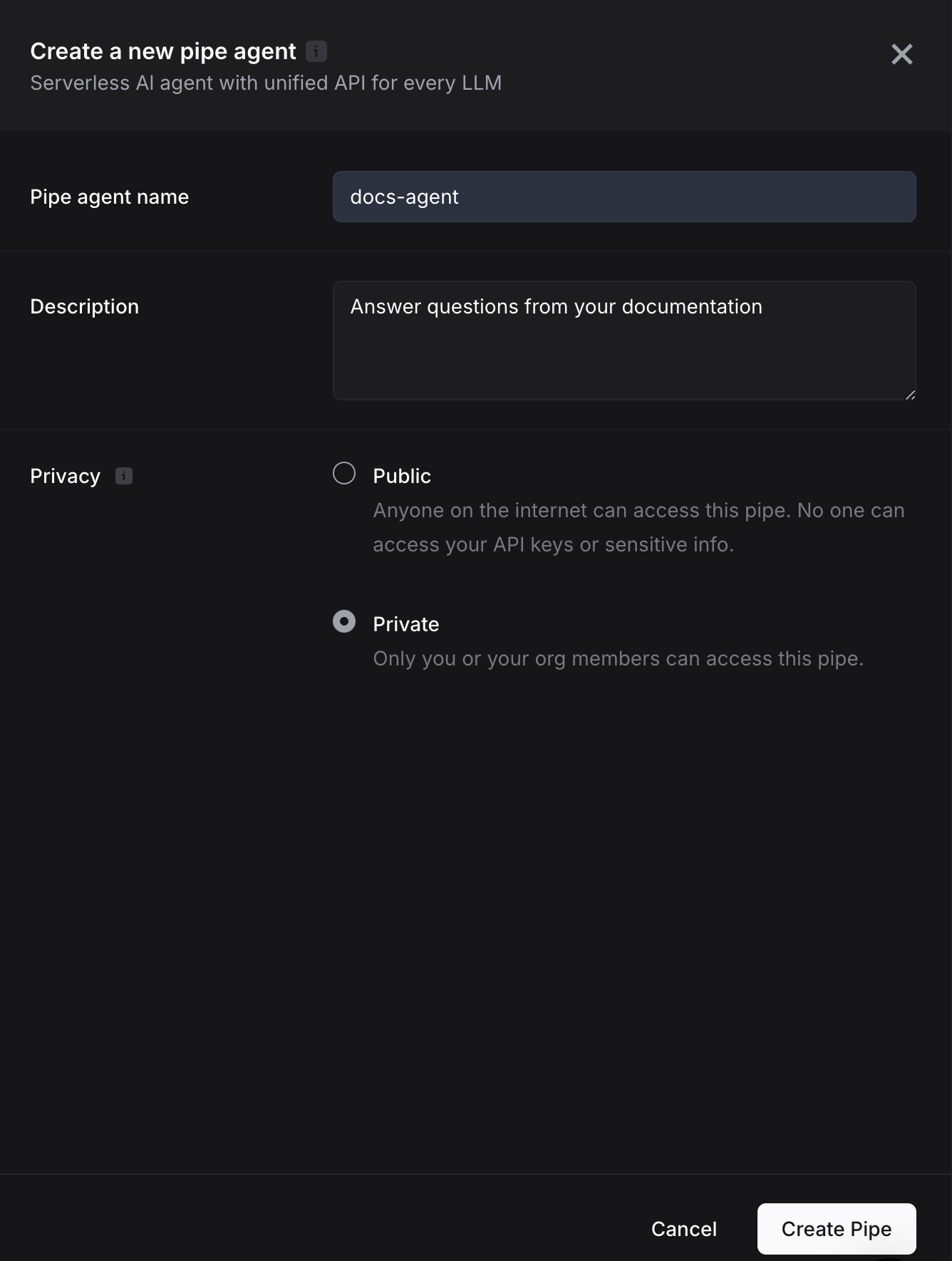
After signing up, type pipe.new to create a new pipe agent. Give the pipe a name (let’s call it docs-agent), description and setting its privacy. Then click the Create Pipe button to create the pipe agent. This step will direct you to the pipe playground you created.
Step #2
Langbase provides support to over 250+ LLMs through one API ensuring a unified developer experience, with easy model switching and optimization. You don’t need separate pipe API keys for different LLM models ensuring a great developer experience.
To configure your LLM in the pipe agent:
- Go to the
LLM Keystab to set keys at the user or pipe level. - User-level keys (can also be configured in profile settings) apply to all pipes by default unless overridden. Learn more.
- Pipe-level keys can be set individually for each pipe. Learn more.
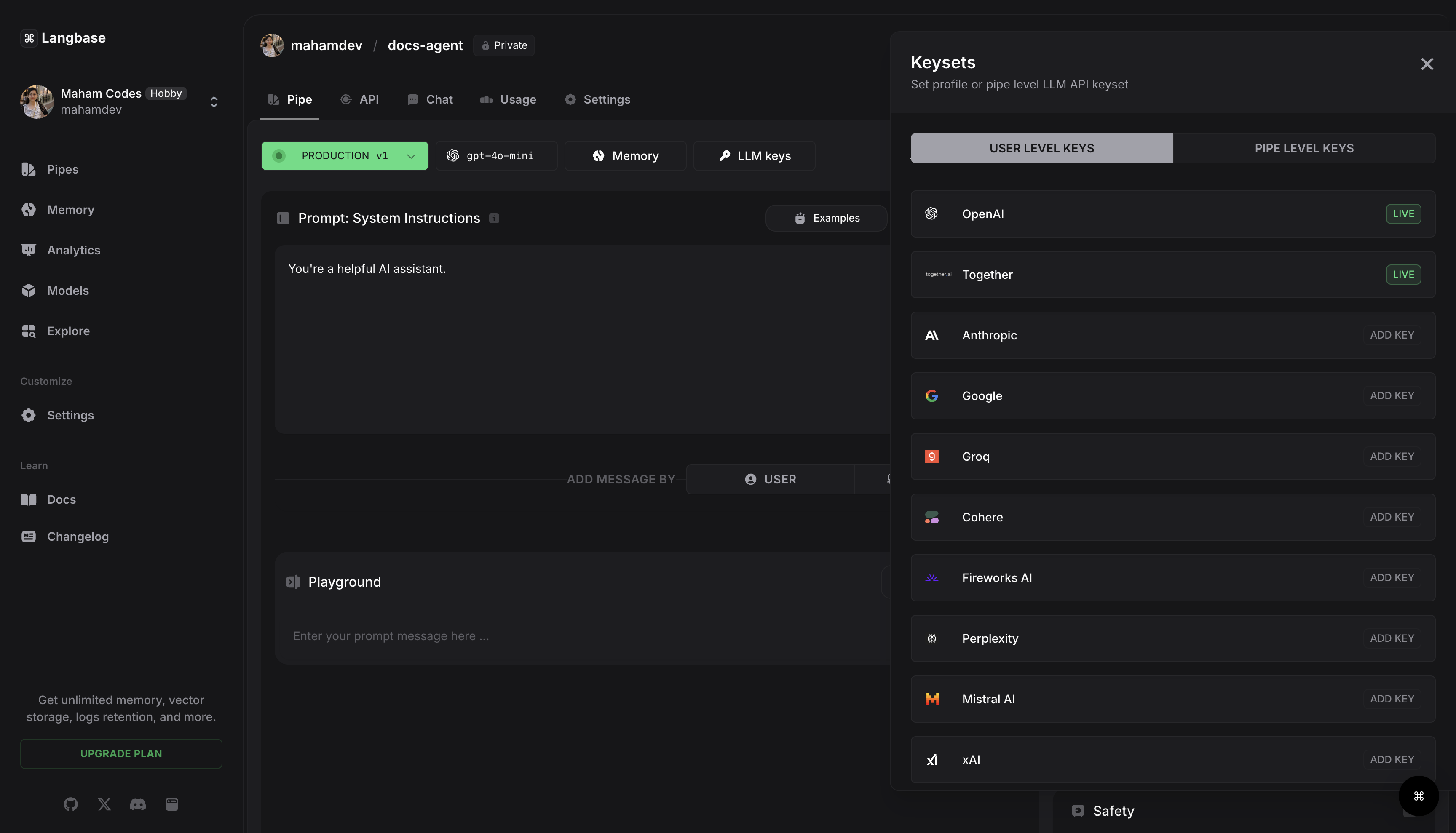
By default, GPT-4o-mini is pre-configured, but you can switch to any model that fits your needs.
Step #3
Prompt is the input you provide to the AI model to generate the output. Typically, a prompt starts a chat thread with a system message, then alternates between user and assistant messages.
Prompt design is important. At Langbase, we have a few key components to help you design a prompt including:
- System Instructions
- User Message
- Variables
- Prompt as Code
To build this docs agent let’s add the following system instructions in our pipe:
I want you to act as a docs agent. Your name is "AI Assistant". You will provide me with answers from the given info. If the answer is not included, say exactly "Hmm,I am not sure." and stop after that. Never break character.
Let’s add a user message like:
What is a pipe on langbase?
Let’s run this pipe agent and I receive this response as added in the system instructions:
Hmm,I am not sure.
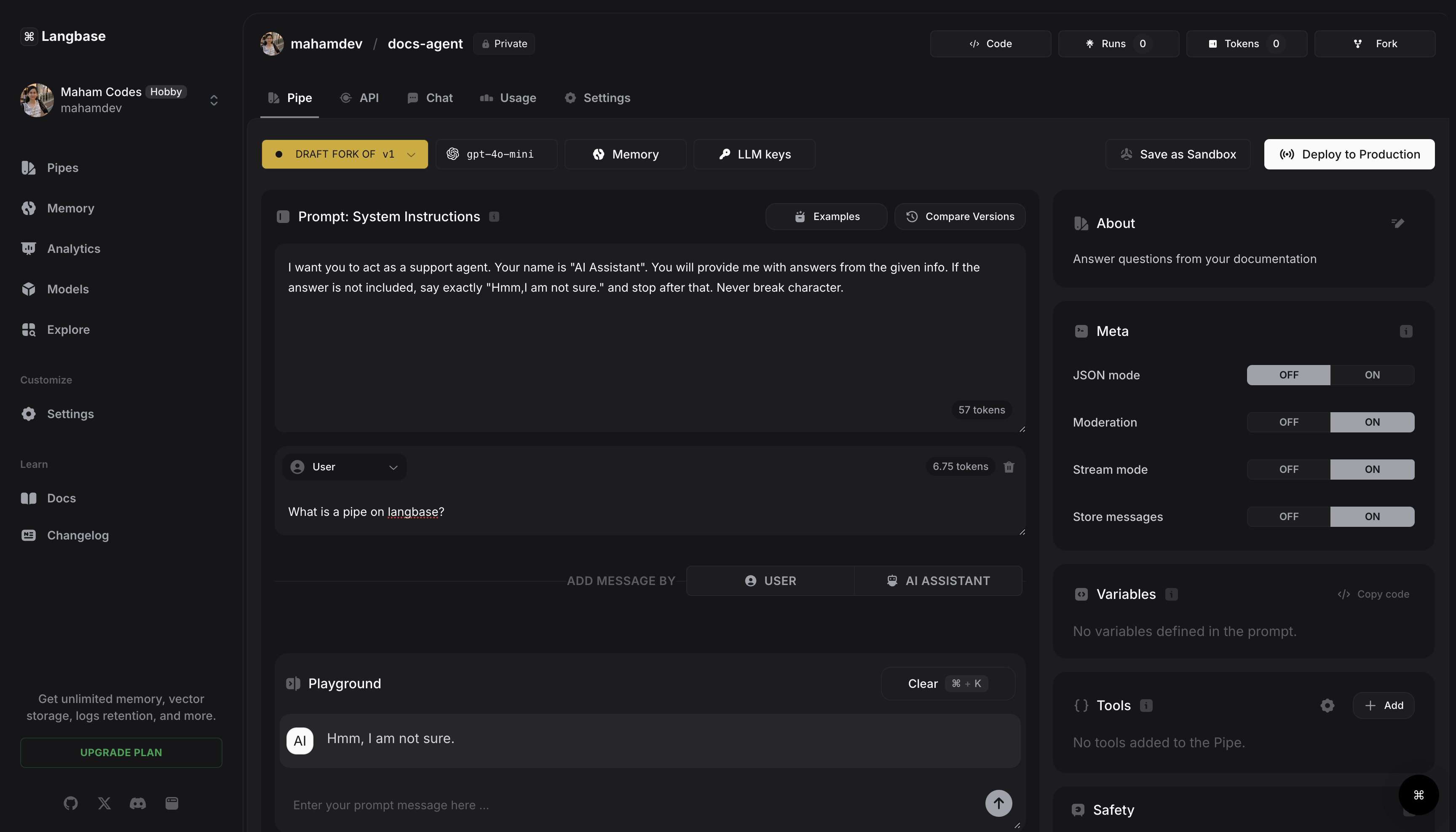
This is because the agent has not much context to our data. Let’s fix this.
Step #4
LLMs are trained on public data. Without real context, they hallucinate when asked about things outside their training data. To fix that, let’s connect our pipe agent to real knowledge. We’ll upload the Langbase documentation (.pdf) to a memory and link it to our pipe.
To create a new memory type rag.new, fill in the necessary information and then upload the document.
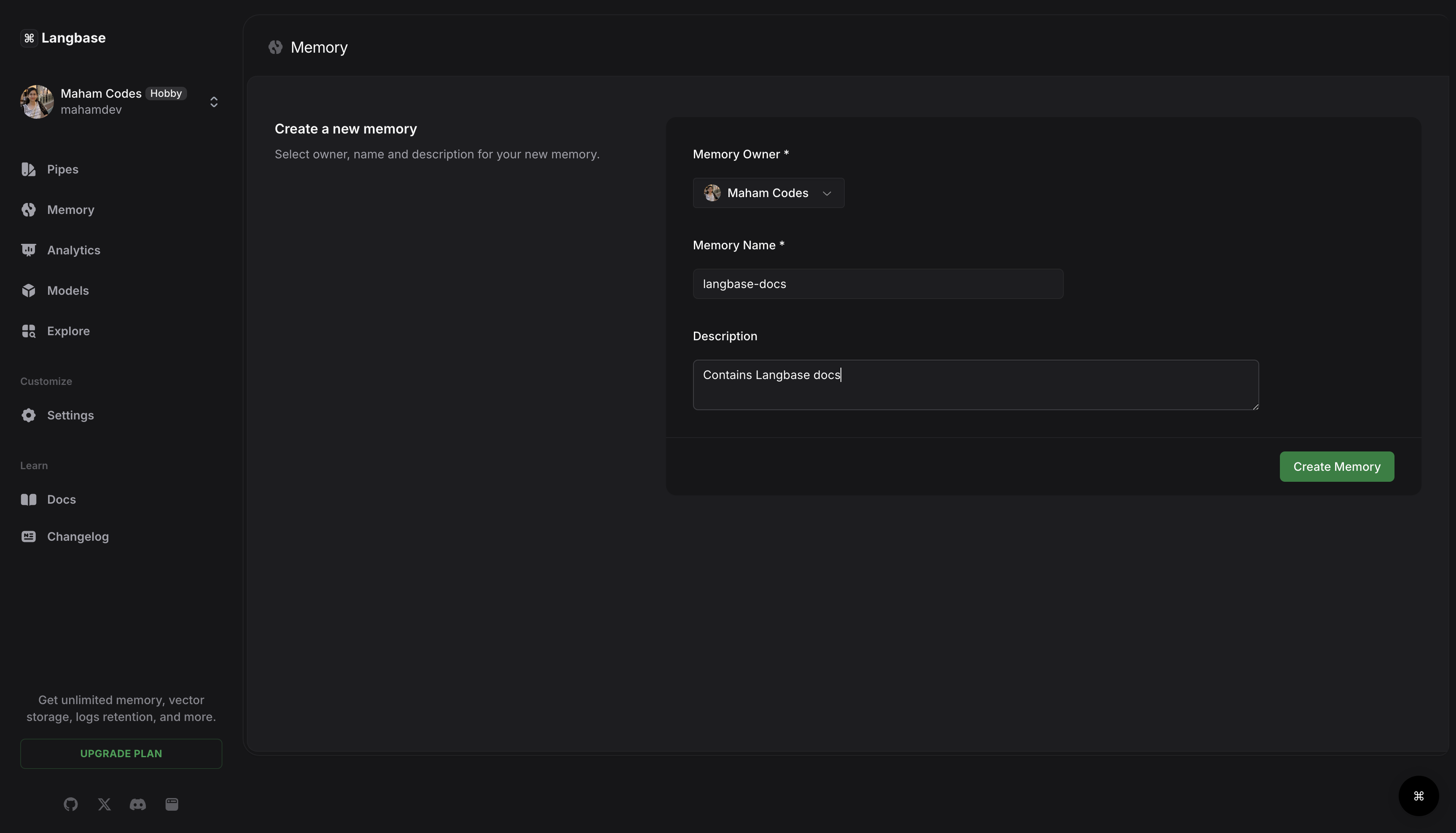
With Langbase, you can upload multiple documents (.pdf, .md, .txt, etc.) to a memory. Any pipe connected to a memory can pull relevant information using RAG (Retrieval-Augmented Generation), ensuring accurate responses instead of guesswork.
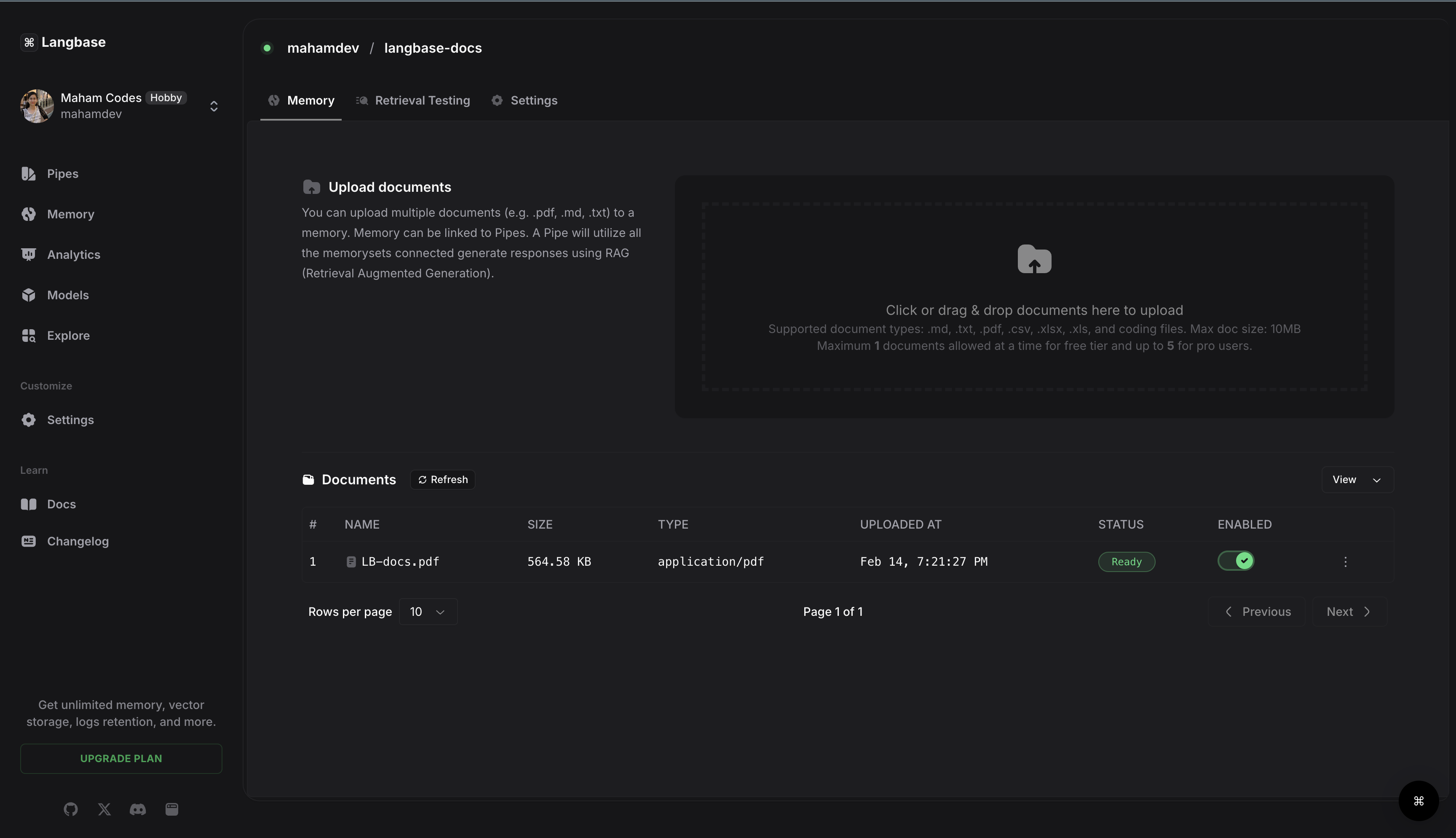
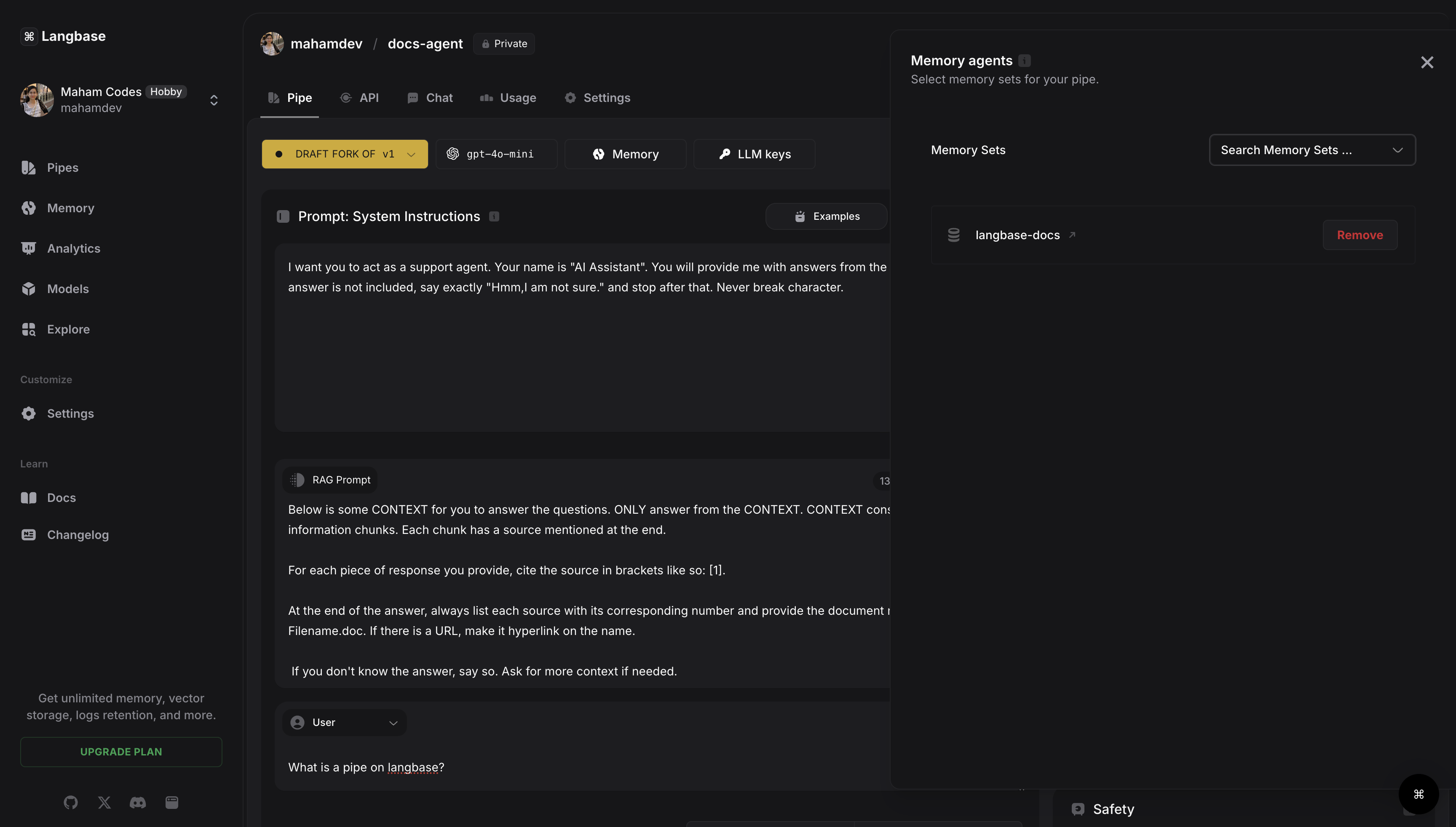
Then head back to the docs pipe agent you created and click the memory tab and select the Langbase documentation memory to link it to the agent. This will automatically set up a RAG prompt. You may adjust it accordingly. By default it states:
Below is some CONTEXT for you to answer the questions. ONLY answer from the CONTEXT. CONTEXT consists of multiple information chunks. Each chunk has a source mentioned at the end.

For each piece of response you provide, cite the source in brackets like so: [1].

At the end of the answer, always list each source with its corresponding number and provide the document name. like so [1] Filename.doc. If there is a URL, make it hyperlink on the name.

If you don't know the answer, say so. Ask for more context if needed.
Step #5
Now that memory is attached, let’s test it. Run the agent with the same prompt —What is a Pipe on Langbase?—and watch it return an accurate, context-aware response.
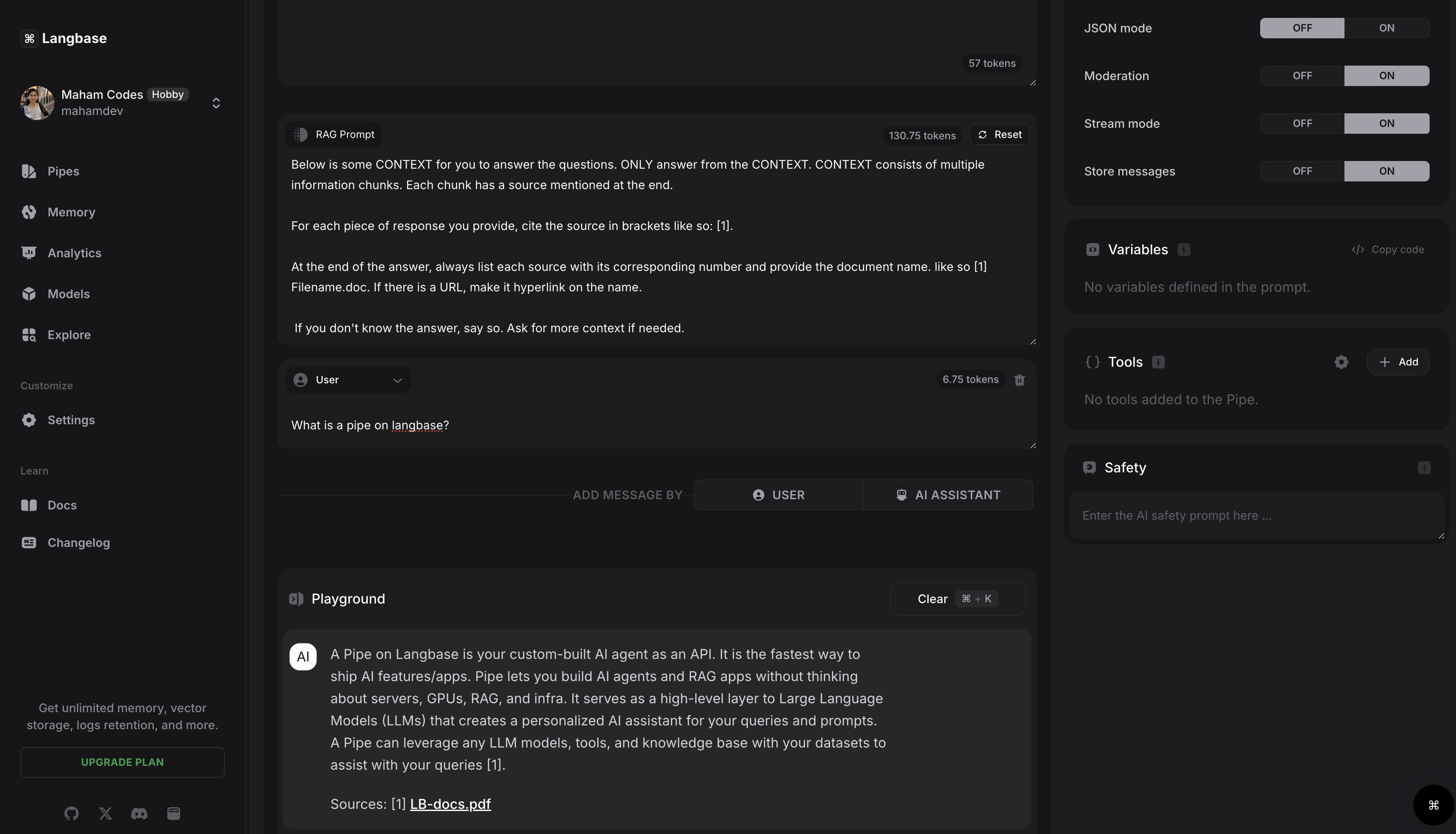
Behind the scenes, Langbase’s long-term memory solution handles the complex work:
- Processes your documents automatically—extracting, embedding, and creating a semantic index.
- Retrieves relevant context in real-time using natural language queries.
- Combines vector storage, RAG, and internet access to deliver precise, reliable answers.
This is how you go beyond generic AI responses and start building truly intelligent, context-aware AI products.
You've successfully built a docs agent using Langbase AI Studio. You may ask anything related to the document attached and it will answer correctly. You may save the agent as a sandbox version or deploy it to production—it's that simple.
Want to dive deeper into creating pipe agents? Click here.
Happy Building!